Quick answer: On iPhone and iPad, use Screen Time (Settings > Screen Time > "This is My Child's iPhone") to set app limits, content restrictions, and location sharing. On Android, use Google Family Link, linking your account to your child's so you can approve downloads, set a bedtime, and lock the device remotely. Set a PIN that's different from the device passcode, and pair these controls with open conversations about responsible use.
In today's digital world, parents need clear, reliable tools to protect their child while they explore the internet. The parental controls built into iOS (iPhone and iPad) and Android are the first line of defense for creating a safe digital environment. This guide explains, step by step, how to set them up and how to use them effectively.
On iOS, parental controls are managed through Screen Time, which is built into the system settings. It's Apple's official tool for managing how the device is used.
On Android, you use Google Family Link, a free app that links your account to your child's so you can supervise and manage their device from your own phone.
Google Play has its own controls to restrict downloads by age. Setting this up protects against inappropriate apps even if you don't use Family Link.
Beyond the technical setup, parental controls work best when they're combined with communication and consistent habits:
Even when parental controls limit access, it's worth watching for these signs in your child:
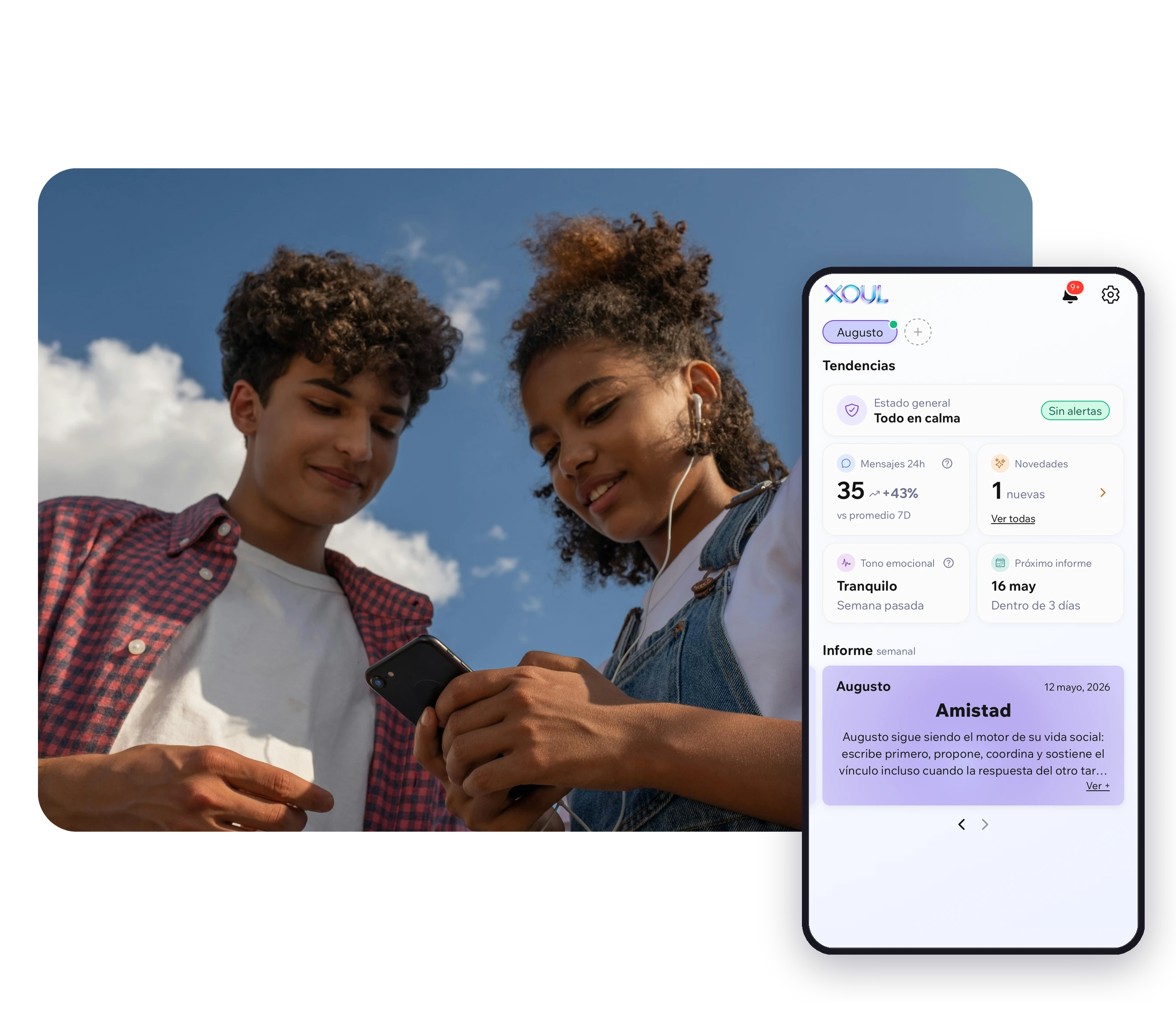
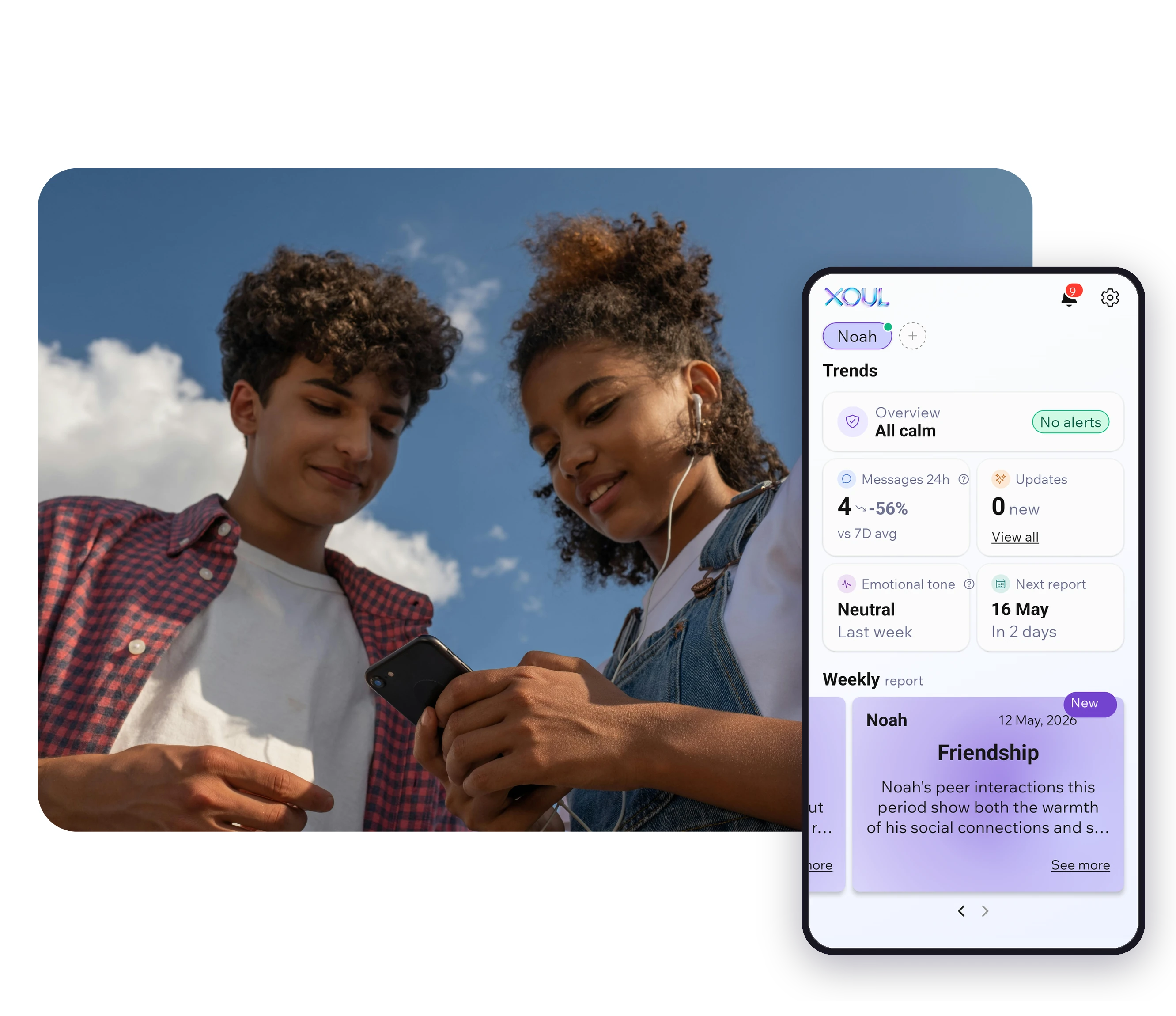
If you notice them, review the settings and start a conversation. Technical controls track time and apps, but not emotions. At Xoul, with your child's consent, we analyze their WhatsApp conversations using AI and a trained clinical team to spot emotional signals such as anxiety, isolation, or cyberbullying that traditional parental controls can't see.
It's best to turn them on from the very first device your child uses, even if you supervise them. As they grow, adjust the permissions toward more independence instead of removing them all at once.
Family Link lets you supervise Google accounts from an iPhone, but the more advanced features require your child's device to be an Android. On iPhone, Apple's Screen Time is the equivalent built-in option.
Not if you set up a PIN or passcode that's separate from the one that unlocks the device. Both Screen Time and Family Link require the adult's code to make any changes.
No. Parental controls set time limits and block inappropriate content. Spying would mean reading private messages without consent. The best approach is to combine technical limits with open conversations about responsible use.
Parental controls manage access, but they don't pick up on emotional signals. If you think your child may be going through a hard time, Xoul complements these tools with AI-based emotional analysis and a human clinical team, while respecting their privacy.
Parental controls are powerful, but they don't replace active supervision, open communication, or digital education. The ultimate goal isn't just to protect, but to raise kids who can self-regulate, make responsible decisions, and navigate the online world safely.
XOUL gives you private reports with risks, emotions and important moments, always from a respectful approach.